Docusign Maestro for Slack Documentation
This is the documentation for the Docusign Maestro integration for Slack.
How to Install and Configure
Installing the App on Docusign
Please follow the guide to install the Slack app from the Docusign App Center.
Once the app is installed, you’ll be prompted to connect the app to your Slack workspace. If you're not already logged in to Slack, you’ll be directed to the Slack login screen, where you can log in or sign up for an account.
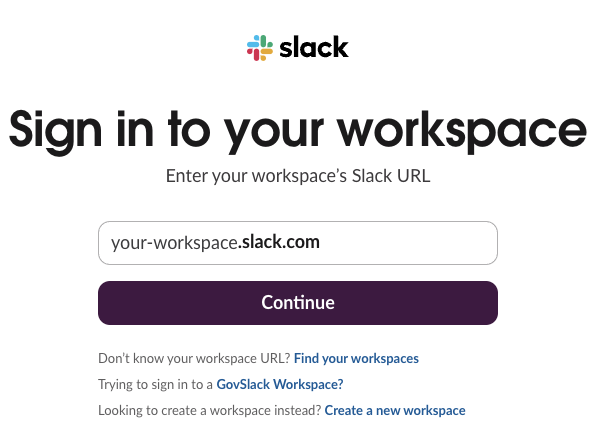
Please log in or sign up to proceed to the "Grant Permission" screen. Click Allow to grant the app access to your Slack workspace.
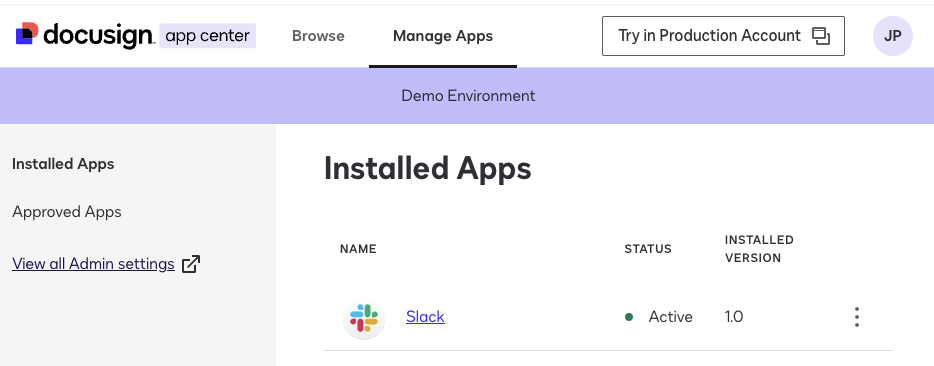
In the list of installed apps, the Slack app should now appear as active:
How to Use the App
The Slack extension simplifies the process of creating, updating, and attaching files to Slack messages within a Maestro workflow. Once the app is installed, different Slack options become available when adding new steps in the Workflow builder.
The following walkthrough demonstrates a common workflow: sending a document for signature and posting the signed envelope to a Slack channel.
You can start by creating a new workflow:

In the workflow, when adding a new step, you’ll see three available Slack steps:
- Export documents to Slack to attach your Docusign envelopes to a Slack message.
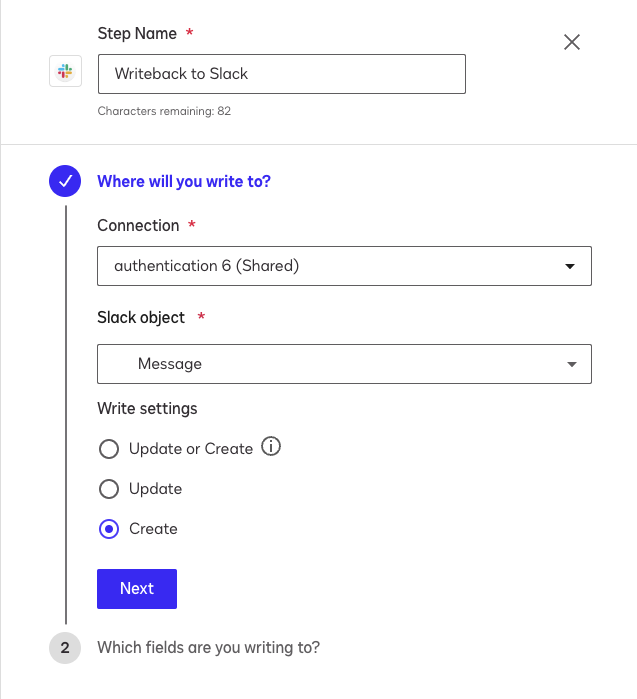
- Writeback to Slack to create or update messages in your Slack workspace.
- Important: The "Create or Update" option currently only performs update operations. If you need to create new messages, use the "Create" option instead.
- Read from Slack to read message information, such as a message ID, for use in other steps.
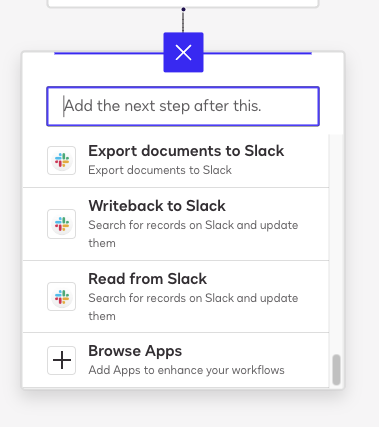
A common approach is to start with the Writeback to Slack step to create a new message. This can be done by providing a channel name or user email and the message text. You can also add user emails to tag them in the message or custom text to inject into your message.
Note: A channel name or user email and message text are always required to create a new message.
Click Configure on the step:
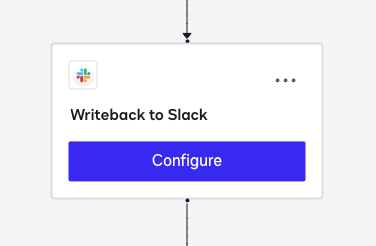
Now, configure the step to write a Message. In this case, select only the option to create:
Click Next to navigate to the Which fields are you writing to? section. The following fields are available:
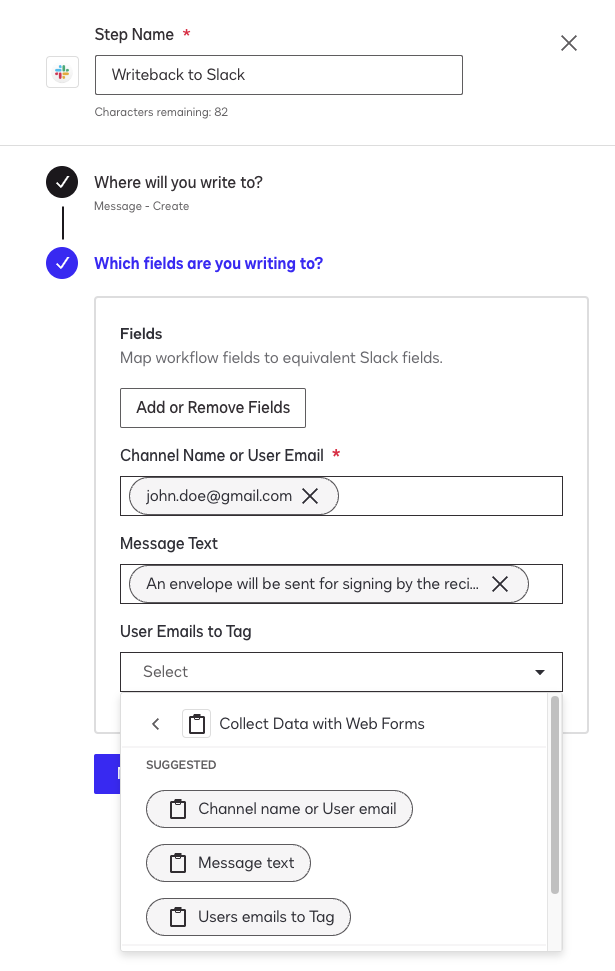
- Channel Name or User Email (required) — The Slack channel name or user email where the message will be sent.
- Message Text (required when creating) — The content of the Slack message.
- User Emails to Tag — A list of user emails to tag in the message. Emails can be separated by commas, semicolons, or whitespace.
- Message Injection Text — Dynamic text that either replaces
$textplaceholders in your message or is appended to the end. See the FAQ for more details.
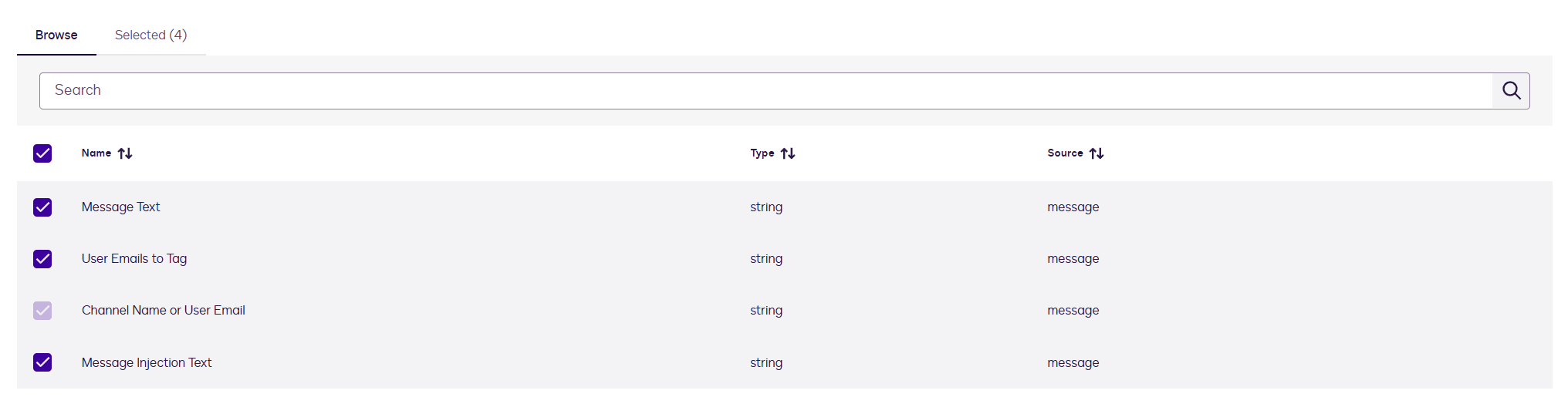
Each field can be mapped to a workflow variable (like values collected from a Web Form) or you can enter them manually.
Next, add the Prepare eSignature Template step and select the envelope template you want to send for signature.
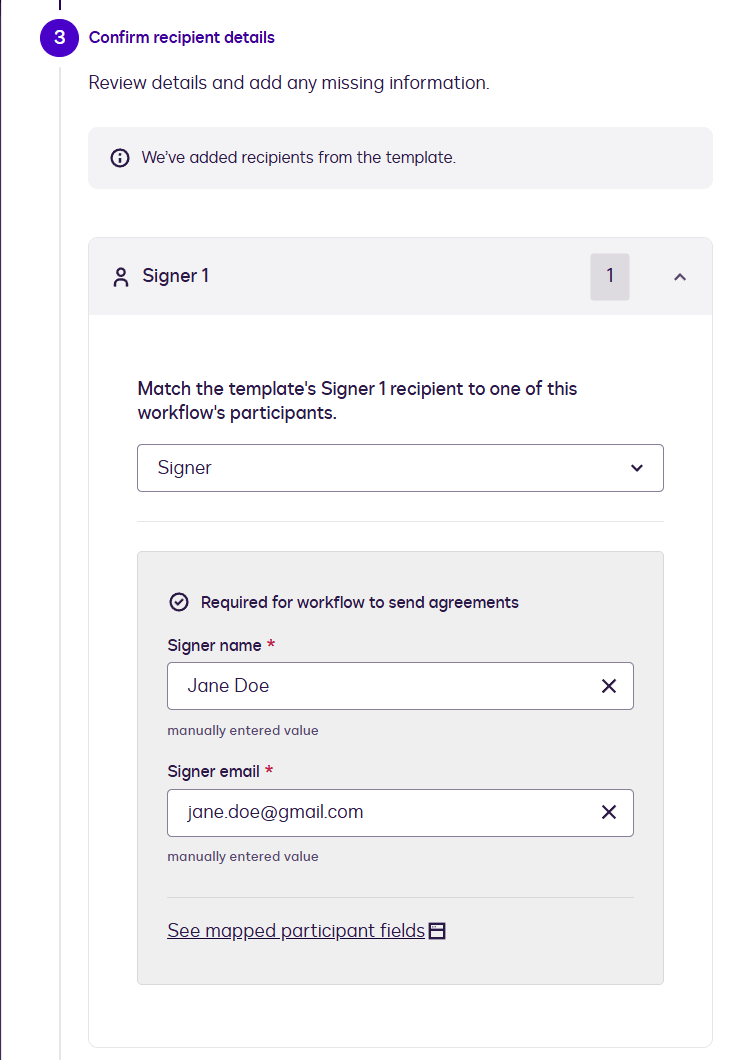
Then, add Send Documents for Signature, select the envelope that was prepared in the previous step and add a participant. Map the signer's name to Signer Name and their email to Signer Email.
After the signing step, add the Export documents to Slack step so the signed envelope is attached to the Slack message once signing is complete. Select the Record ID from your previous Writeback to Slack step in the Select identifier field to specify which message the file should be attached to.
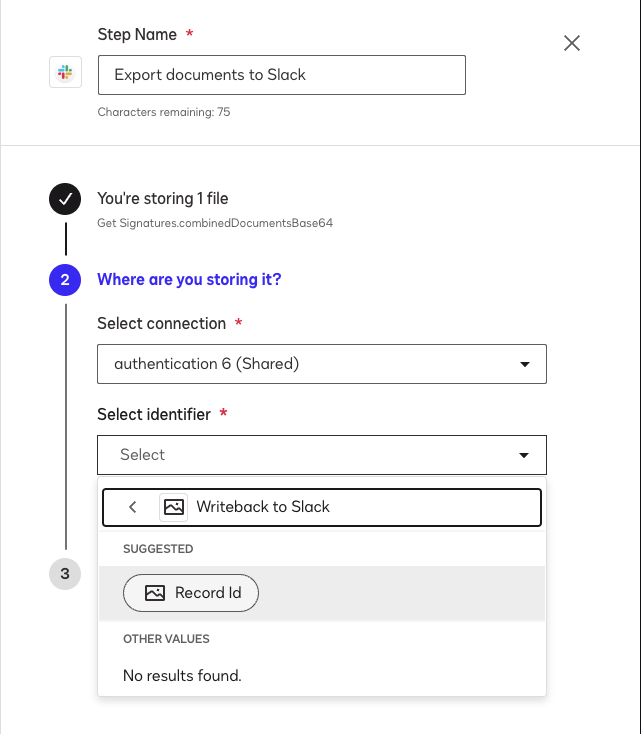
After adding your identifier, specify a file name for the exported document. The document will be attached as a new reply to the message created during the Writeback to Slack step.
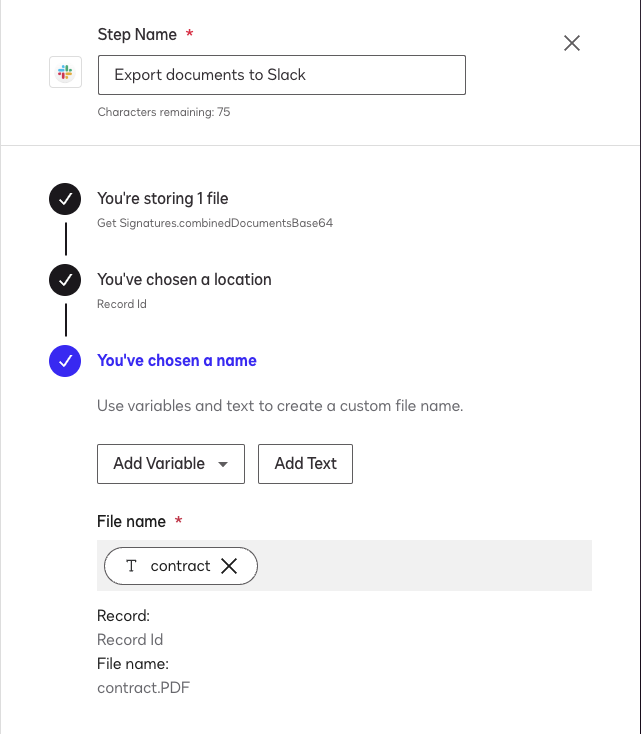
Note: Instead of specifying a message ID as the identifier, you can provide a channel name or user email. A new message will then be created with the default text "A new Docusign envelope has been sent from a Maestro workflow.", with the file attached to it.
Next, use the Writeback to Slack step one more time to update the original message with a new status. In this case, select only the option to update.
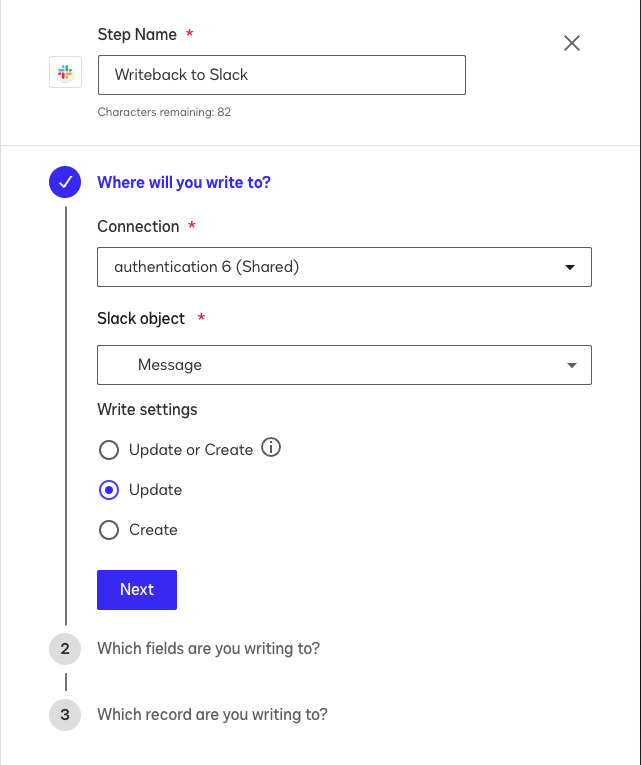
Under Which fields are you writing to?, select the Message Text option and enter the updated message text.
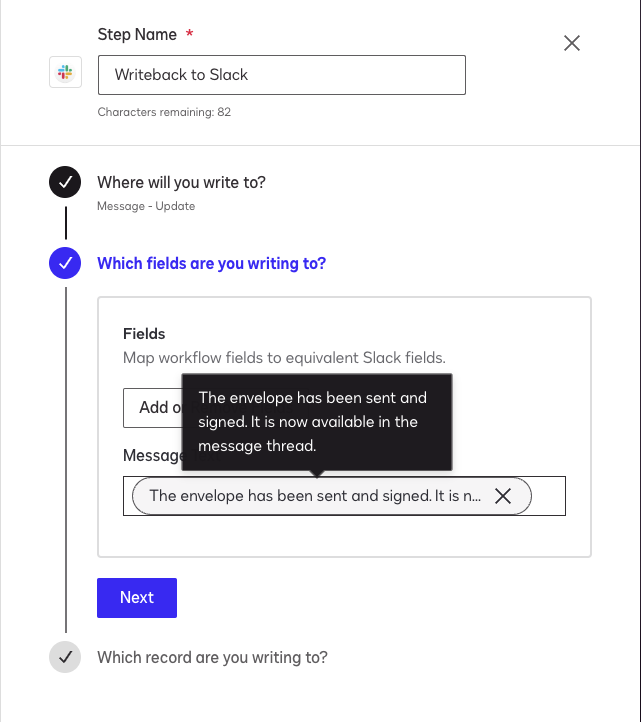
Also under Which record are you writing to?, provide the Record ID from the earlier Writeback to Slack so the step can locate the correct message to update.
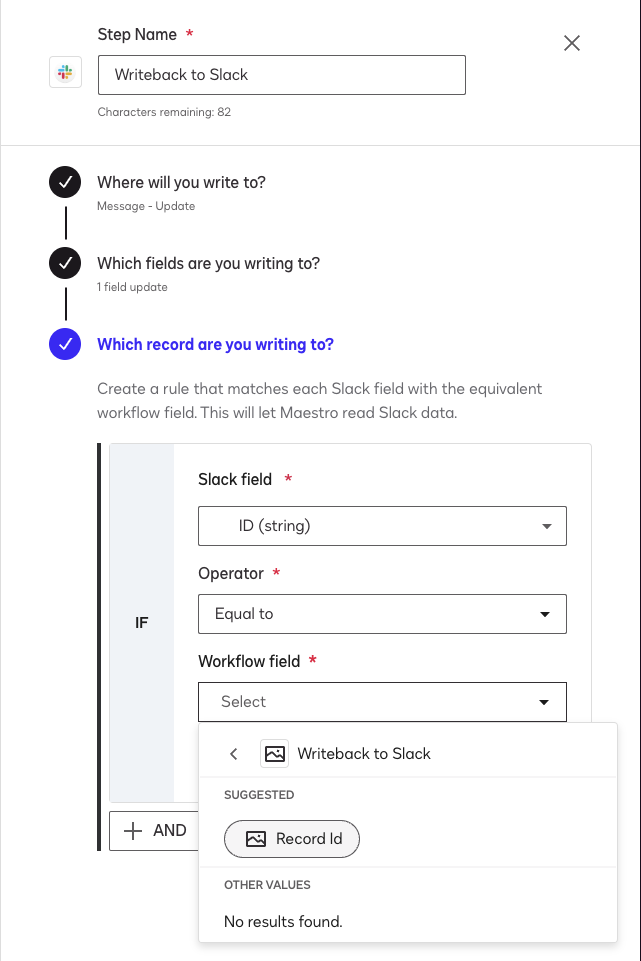
Note: When specifying the message ID, ensure this value originates from one of the previous Writeback to Slack or Read from Slack steps; otherwise, an error will occur.
Finally, the specified message will be updated with the new message text.
That's it! With this workflow, you can easily attach signed envelopes and update your messages using the Docusign Maestro for Slack app.
FAQ
Why doesn't the "Create or Update" option work when creating a new message?
The "Create or Update" option in the Writeback to Slack step does not support creating messages and will only work for updating existing messages. If you need to create a new message, you must select the Create option instead. Using "Create or Update" for message creation will not work as expected.
Can I update an existing message without having to create it first?
Yes. Using the Read from Slack step, you can specify the channel name or user email, along with the message text, to locate the exact message you’d like to update.
Why do I need to use the channel name or user email and message text as inputs to the workflow?
Providing the channel name or user email, along with the message text, is essential to precisely identify or create the appropriate Slack message within your workspace. Slack channels or direct user messages can contain numerous messages, making it critical to specify these inputs clearly.
-
Channel Name or User Email: Defines the exact location (channel or direct message conversation) where the workflow should search for or create the message.
-
Message Text: Helps uniquely identify the message you want to update or reference, especially in busy channels with many conversations.
Alternatively, you can use the message ID to locate a message. However, this ID must originate from a Read from Slack or Writeback to Slack step. If manually entered, you must also specify the channel name or user email.
Can I enter the message ID manually?
For the Writeback to Slack or Read from Slack steps, you can manually enter a message ID, but you must also specify the channel name or user email. If the message ID was obtained from one of the previous workflow steps, you can use it directly without specifying the channel name or user email.
If you manually enter the message ID in the Select identifier field within the Export documents to Slack step, ensure that this ID originates from either the Writeback to Slack or Read from Slack steps.
Can I only attach files to replies of existing messages?
No, you can also create entirely new messages with files attached. To do this, instead of using a message ID in the Select identifier field within the Export documents to Slack step, specify the channel name or user email directly.
Can I send messages to private channels?
Yes, you can. However, before sending messages to private channels, ensure that the app has been invited to the channel. You can quickly invite the app by typing the following command in the channel's chat:
/invite @Docusign for Slack
How can I use the "Message Injection Text" property?
The "Message Injection Text" property allows you to dynamically add text to your Slack messages in two different ways:
-
Using the
$textplaceholder- If your message contains
$text, the injection text will replace it - Example:
- Message: "Hello $text!"
- Injection Text: "World"
- Result: "Hello World!"
- If your message contains
-
Appending to the message
- If your message doesn't contain
$text, the injection text will be added at the end - Example:
- Message: "Hello"
- Injection Text: "World"
- Result: "Hello World"
- If your message doesn't contain
This feature is useful when you want to:
- Add dynamic content to your messages
- Keep a base message template and customize it with different text
- Append additional information to existing messages
Note: The $text placeholder can be used multiple times in a message, and all instances will be replaced with the injection text.
What formatting or characters are not supported when trying to find a matching message?
The message search works best with simple text. Some Slack formatting and special characters are not currently supported, which can affect the ability to match messages accurately.
The following Slack formatting styles and characters are not supported when trying to find or match a message:
- Code blocks – Multiline code wrapped in triple backticks. Example:
Some code here
- Links – Formatted links like https://url or label
- Block quotes – Lines starting with >
- Bullet lists – Lines starting with •
- Mentions inside code – Mentions like
@userinside backticks or code blocks won’t be recognized
Support
If you encounter any issues with the app or have feedback, please do not hesitate to contact us at slack-support@thisdot.co.
Privacy Policy
You can review our privacy policy at https://docusign-apps-slack.vercel.app/privacy-policy.